
GHL contact action buttons for the “deposit’s in!” moment
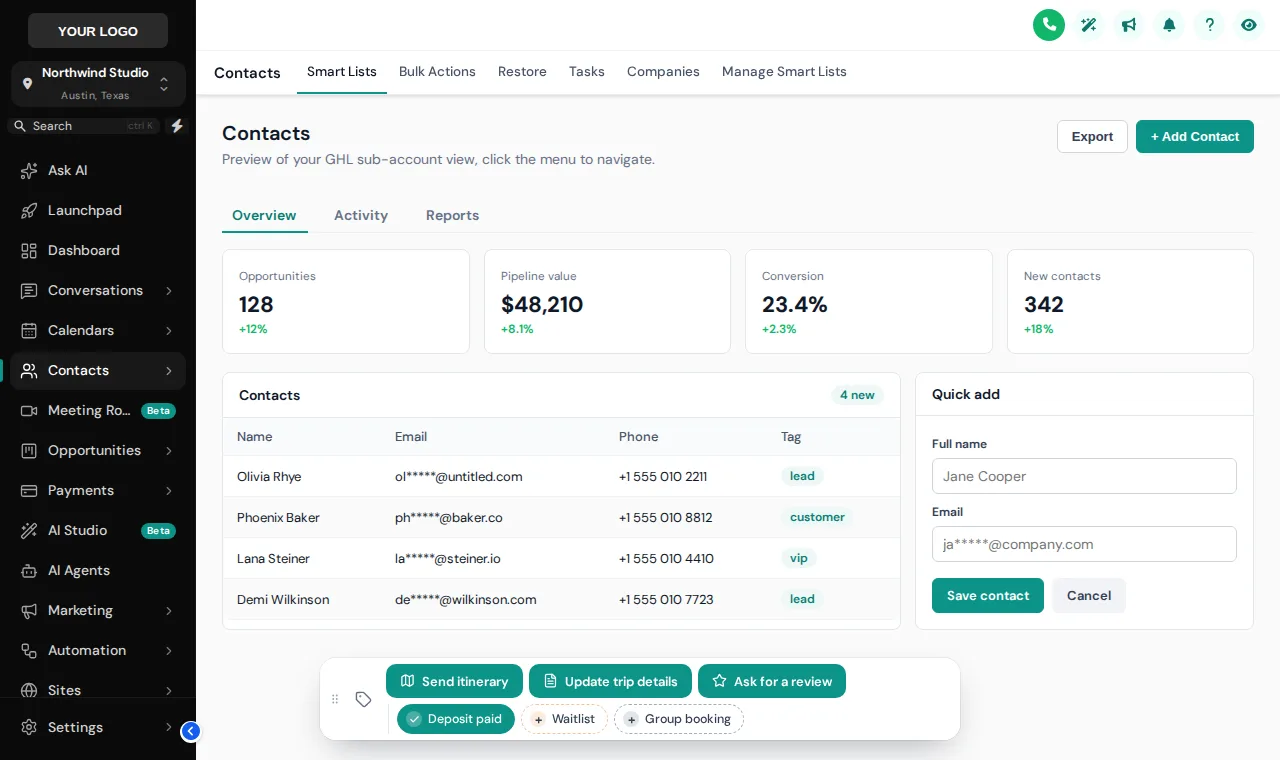
A guest calls to confirm, the deposit lands, and your desk has to find the right tag in a long list before the next call. With a contact actions bar it is one tap: Deposit paid, Waitlist, Send itinerary. Each tap can fire the workflow behind it.
- Departure
- Sat, 9:00
- Party size
- 6 guests
- Pickup
- Harbour hotel
- Stage
- Deposit sent
Sample record · made-up guest
How do GoHighLevel quick tags save time?
GoHighLevel quick tags from the contact actions bar put your most used tags and actions on every contact page as one-tap chips and buttons. A tap adds or removes a tag, which can start a workflow; a button can also open a short form that fills custom fields. The page updates at once, with no reload.
- 1
- tap to add or remove a tag
- 2
- kinds of action: quick tags and buttons
- 6
- starting positions on screen
- 0
- code for your desk to write
Tap the real contact actions bar
This sample bar carries tour tags: Deposit paid, Waitlist and Group booking, plus Send itinerary, Update trip details and Ask for a review. Tap, open the form, drag the bar. Nothing is saved.
The real contact actions bar. Tap a quick tag, open Update trip details to see its form, or drag the bar around. Nothing is saved in the preview.
Loading the live preview…
Five contact actions for a tour reservation desk
Each one pairs a chip or button with a workflow you already have (or build once in GoHighLevel).
| Action | Kind | What it sets off |
|---|---|---|
| Deposit paid | Quick tag | Starts the confirmation workflow that sends the booking details and the pre-trip checklist. |
| Waitlist | Quick tag | Adds the guest to the waitlist nurture, so they hear first when a seat opens. |
| Send itinerary | Button | Adds the tag your itinerary workflow listens for, then shows a success message. |
| Update trip details | Button with form | Opens a short form for departure date and party size, saved straight into custom fields. |
| Ask for a review | Toggle button | Adds or removes the review-request tag after the trip, so the review workflow runs once. |
Fast for the desk, safe for the data
- Uses GoHighLevel’s own API with the signed-in user’s session
- If GoHighLevel refuses a change, the chip flips back and says why
- Optional notes record who added which tag, and when a field changed
- Limit any chip or button to the sub-accounts that need it
Add contact action buttons in four steps
- Step 1
Add quick tags
In the Contact actions tab, add chips for the tags your desk uses most, with their own colours for added and not yet added.
- Step 2
Add buttons and forms
Create buttons that add, remove or toggle tags, or open a short form whose fields map to custom fields on the contact.
- Step 3
Connect your workflows
Point each button at the tag a GoHighLevel workflow listens for, such as "send itinerary", so one press starts it.
- Step 4
Save
The bar appears on every contact page, in the sub-accounts you chose, on the next page load.
Included in Explorer ($417 one-time) and in Grand Tour.
Contact actions questions
Quick tags, workflow buttons, custom-field forms and permissions on GoHighLevel contact records.
Still wondering about something? Ask us directly and a person from our support team writes back.
What is the contact actions bar?
Can a button start a GoHighLevel workflow?
Which custom fields can a form fill in?
Does it respect GoHighLevel permissions?
Does it leave a record on the contact?
Where does the bar sit on screen?
Can different sub-accounts get different buttons?
Which package includes contact actions?
Next stops on the tour
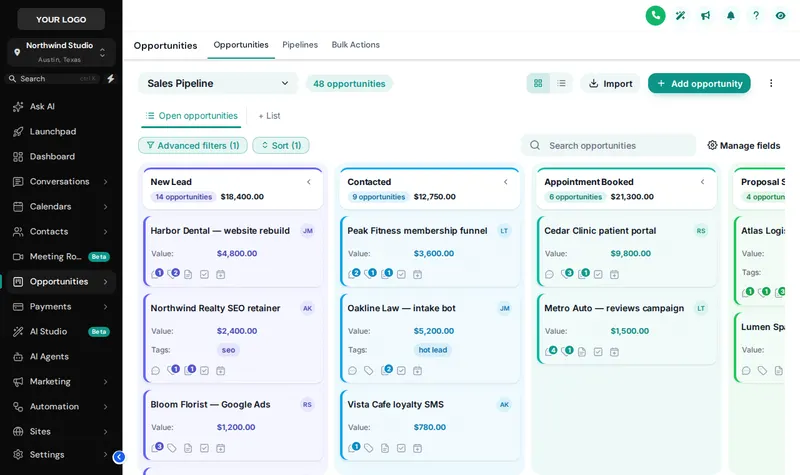 Stop 07Pipeline board designsInquiry to departed, readable at a glance.From Explorer
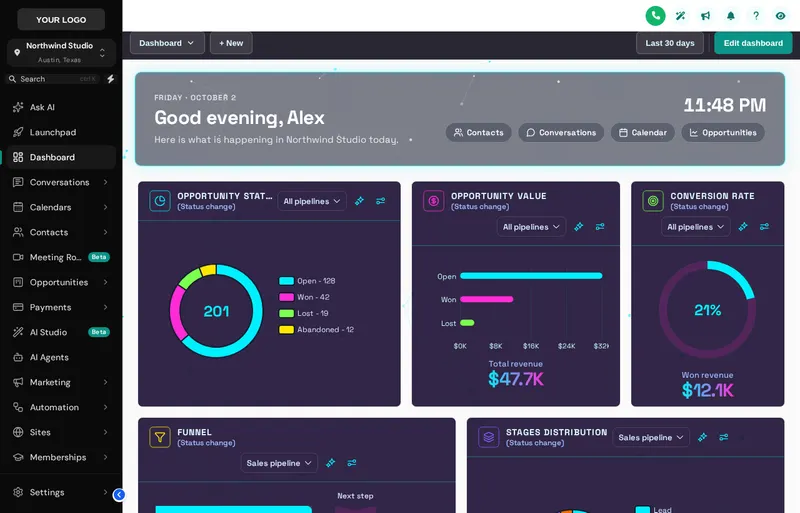 Stop 03Dashboard designsA home screen your reservation desk wants to open.From Explorer
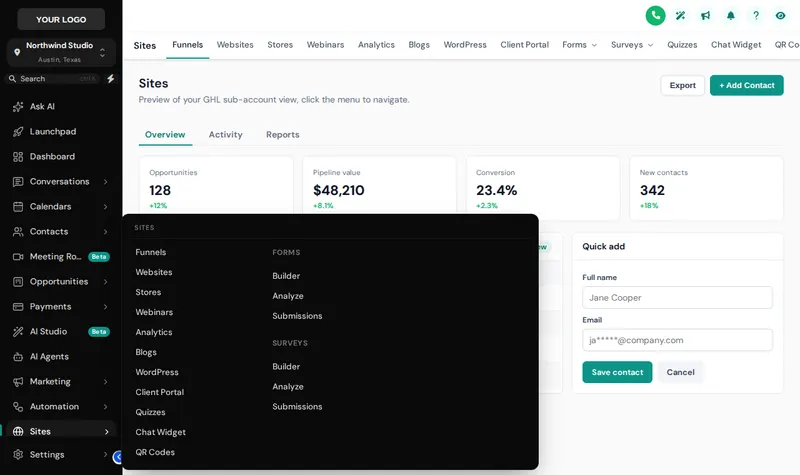 Stop 04Menus and navigationSidebar, top bar and mega menus named your way.From Explorer
 Stop 06Notifications and social proofScores, ratings and nudges after the trip.From Grand Tour
One tap from “deposit’s in” to the next call
The contact actions bar comes with Explorer, alongside the dashboard and pipeline designers and mega menus.
Secure one-time payment by Stripe · login emailed within minutesIndependent product. GoHighLevel and HighLevel are trademarks of HighLevel Inc. GHL Tourism Snapshot is an independent business and is not an official partner, employee or reseller of HighLevel. GHL Customizer accounts run on the GHL Customer Care customizer platform; you customize and install the look yourself. The screenshots in this section are our own captures of the customizer's preview engine running on sample data, and every sample name in them is made up.
Your Explorer account
Self-serve account · login emailed within minutes (max 24 h) · lifetime access